2. Navigation and Workspace
Goal
Understand global navigation, active project context, and safe movement between modules.
Workspace semantics
Global sidebar controls module-level navigation.
Top bar controls search, profile, and quick actions.
Active project context determines where data and runs are created.
Step-by-step
Open dashboard.
Identify key navigation areas: - Left sidebar: Datasets, Builder, Experiments, Models, MLOps, Privacy, SynthGen. - Top bar: search, notifications, profile/team.
Change module from sidebar and confirm page title updates.
Switch active project (if selector is available).
Return to previous module and confirm context remains stable.
Functional validation checklist
Each menu item routes to the correct module URL.
Browser back/forward preserves expected state.
Active project badge/selector remains consistent across modules.
Forbidden modules are hidden or blocked for non-authorized roles.
Table filters and search survive refresh when expected by product behavior.
Expected result
User can move across modules without losing project context.
Navigation reflects role permissions and plan limits.
Common errors and recovery
Data appears from wrong project: - Re-check active project selector. - Hard refresh and re-enter module.
Menu option missing: - Verify user role and subscription plan.
Stale UI state: - Clear local storage for platform domain and re-login.
Screenshot
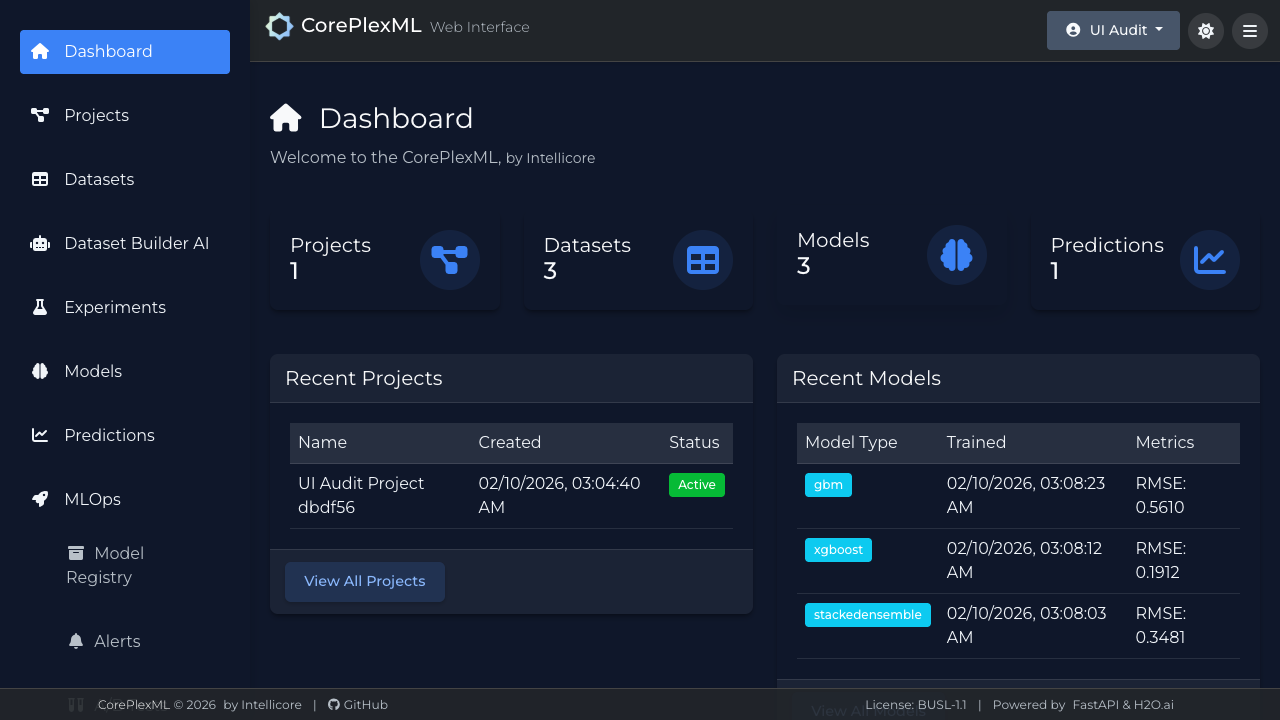
Main workspace navigation with module and profile access points.